From a road-network DXF to signs and pavement markings, by traffic-control code.
SignMarkIQ reads a road network from a DXF, detects the junctions and curb returns, and generates the signs and markings the traffic-control code requires: line types and widths, stop and give-way lines, crossings, lane arrows, roundabouts, islands and parking, all returned as a DXF.
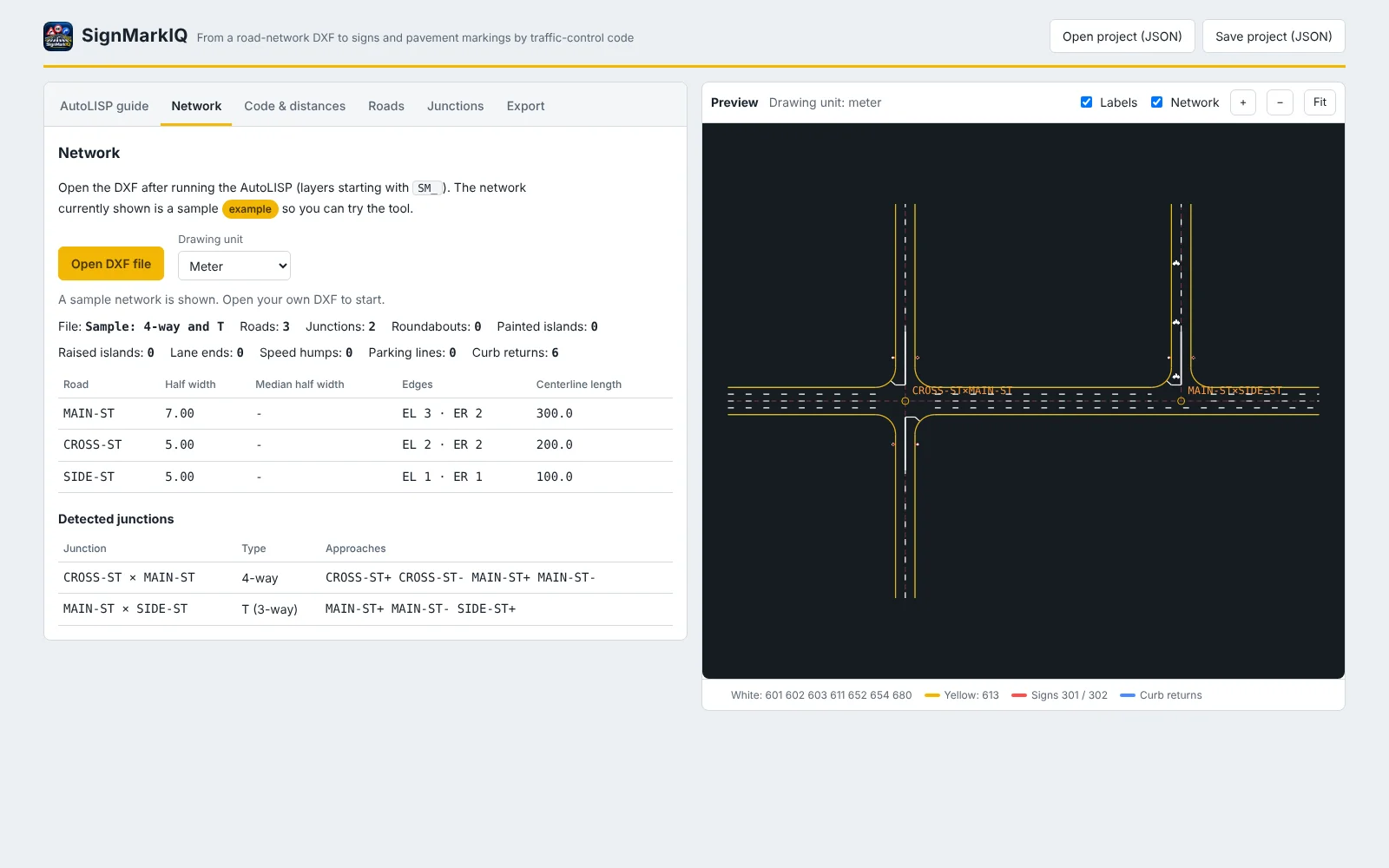
Built around the network and the code, not around drawing by hand.
An AutoLISP routine that prepares the drawing
Download the routine, load it in AutoCAD, and it asks for each road's name, centreline and edges. It finds the curb returns, names every junction after the streets that meet there, and writes the standard layers the tool reads. Roundabouts, islands, parking and speed humps have their own commands.
Junctions and curb returns found automatically
Open the DXF and the network tab lists each road, its half width and edges, and every detected junction (4-way, T and others) with its approaches. Shared curb returns are resolved without you classifying them.
The code is data, not hard-coded
Two codes are built in: Abu Dhabi TR-511 and the Saudi Highway Code 602. Line patterns, widths, colours, transverse-line dimensions and sign sizes come from a code profile that you can edit, save, and replace by loading another code as JSON.
Speed and lanes set the markings
Each road's speed sets line width, pattern and sign size; lanes per direction set the lane lines. Edge-line and island-line offsets use a shy distance you enter, because TR-511 does not define one.
Junction control, crossings and arrows, approach by approach
For every approach choose Stop, Give Way or no control, a pedestrian crossing, and lane arrows. Ahead of a stop or give-way line the centre line becomes the no-passing line for the approach length, and advance-warning signs are added above 60 km/h.
Roundabouts, islands, parking and humps
Roundabout entries get give-way lines, signs, lane arrows and guide lines; painted islands are filled with hatch or chevron markings; parking bays and lane-end arrows are drawn from the kerb line; speed humps get their marking and a sign per direction.
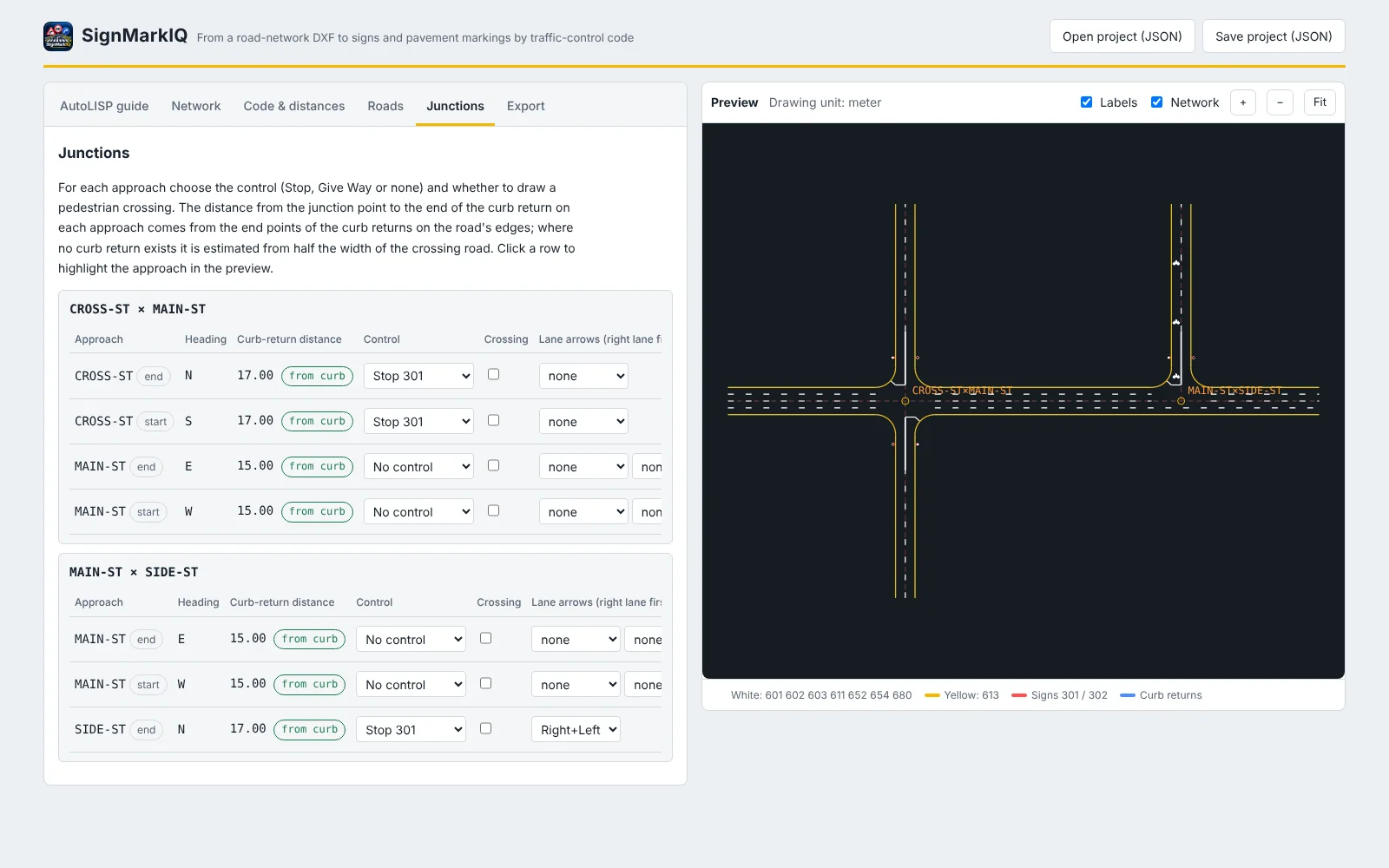
Every approach set once, then drawn.
The junctions tab lists each approach with its heading and the curb-return distance read from the drawing, so control and arrows are set where the traffic actually meets the junction.
- Stop, Give Way or no control per approach
- Pedestrian crossing on or off per approach
- Lane arrows per lane, with advance arrows
- Click a row to highlight the approach in the preview
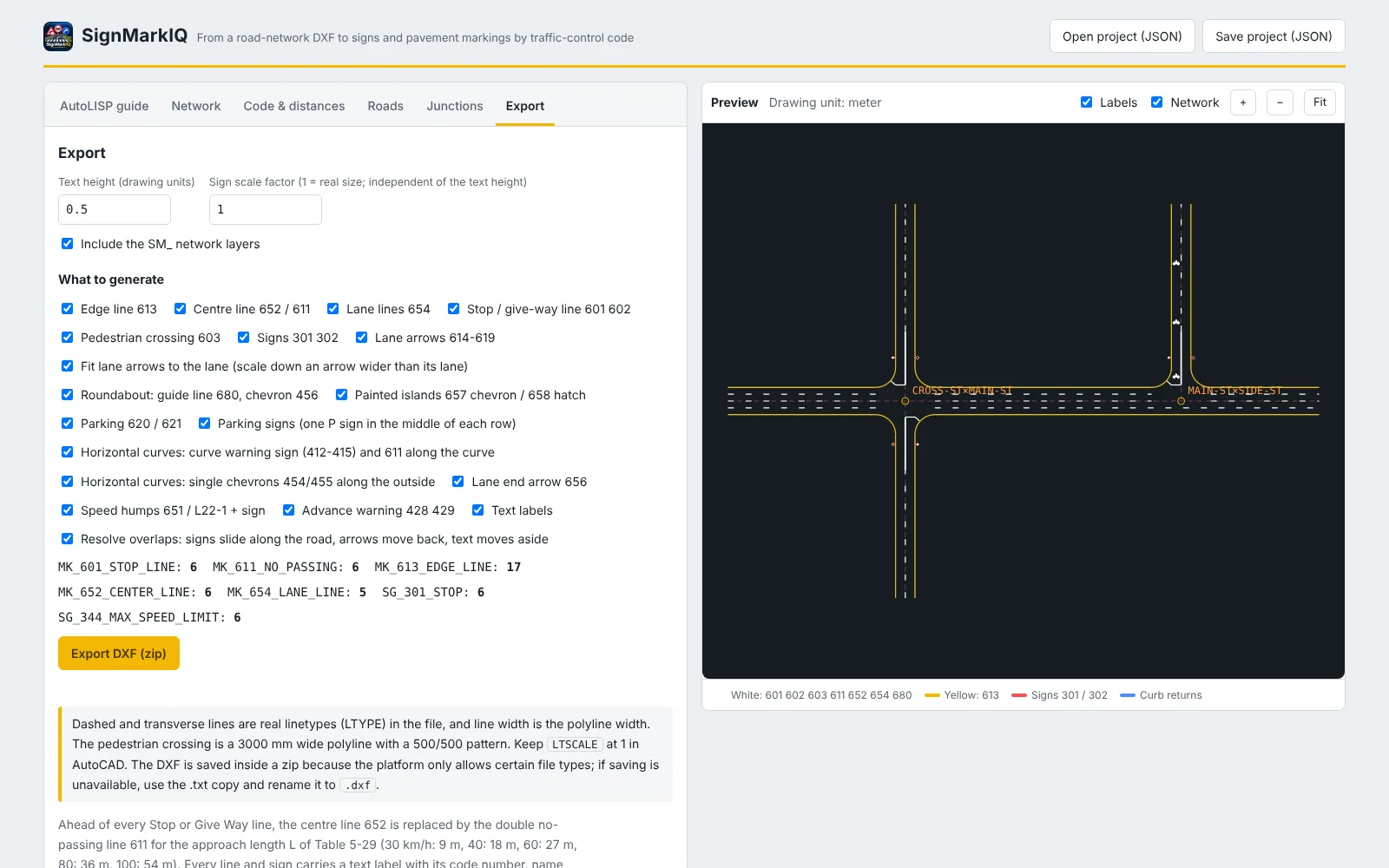
Choose what to generate, get a DXF back.
Tick the markings and signs you want, set the text height and the sign scale, and export. Dashed and transverse lines are real linetypes in the DXF and line width is the polyline width, so the file opens ready to use.
- Edge, centre, lane, stop and give-way lines, crossings and arrows
- Signs, curve warning signs and chevrons, speed humps
- Every line and sign labelled with its code number
- Overlaps resolved: signs slide along the road, arrows move back
- Project save and load (JSON)
SignMarkIQ in twelve seconds.
Runs in the browser. Nothing to install.
Server-side calculation engine
The marking logic runs on the server, so there is nothing to install and the engine stays protected.
Secure sign-in with an emailed one-time code
No passwords to manage. Enter your email, receive a six-digit code, and sign in.
Works with your CAD
The AutoLISP routine prepares the drawing in AutoCAD, and the result comes back as a DXF you can open in your CAD software.
Take a real road network through SignMarkIQ.
Request a demonstration and bring your own DXF.